Files & Glider Data
Upload competition documents; manage handicap indexes; review uploaded IGC flights.
Three admin tools manage the data files behind a competition: the documents pilots download, the handicap indexes that define each class, and the IGC flights pilots send in.
Files upload
The Files Upload tool is where you publish documents — rules, local procedures, briefings and other PDFs — to the public Documents page.
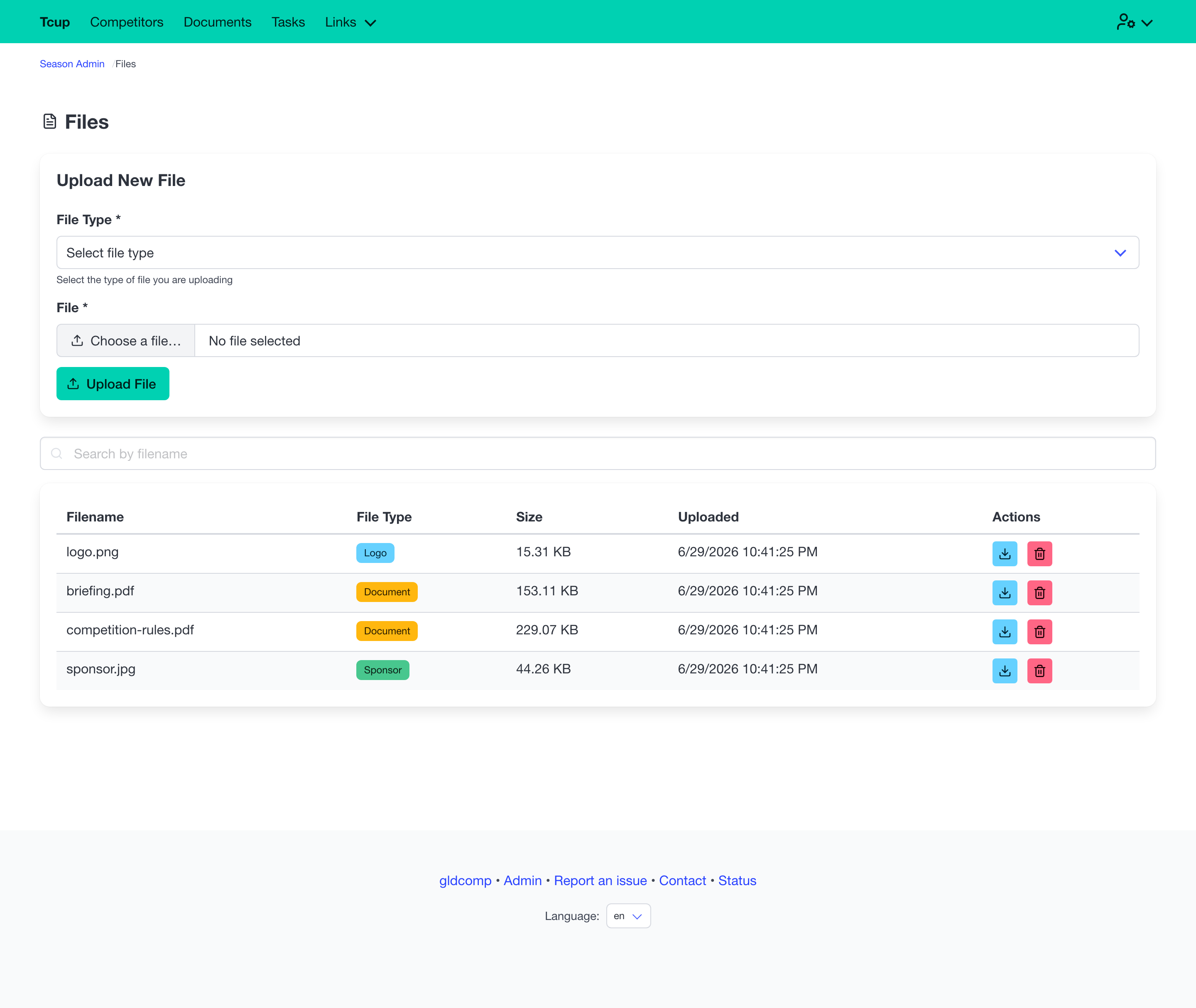
- Upload a document by drag-and-drop or file picker.
- Search, download or delete existing files. Uploading a new version makes it available to pilots immediately.
Waypoint and airspace files don’t need to be uploaded here — they’re synced automatically from Soaringspot as part of the contest-files sync, so they stay in step with the official data. See SoaringSpot Sync.
Glider indexes
The Gliders Indexes tool manages the handicap index for every glider type, per class — used for handicapped scoring and shown on the public competitor list.
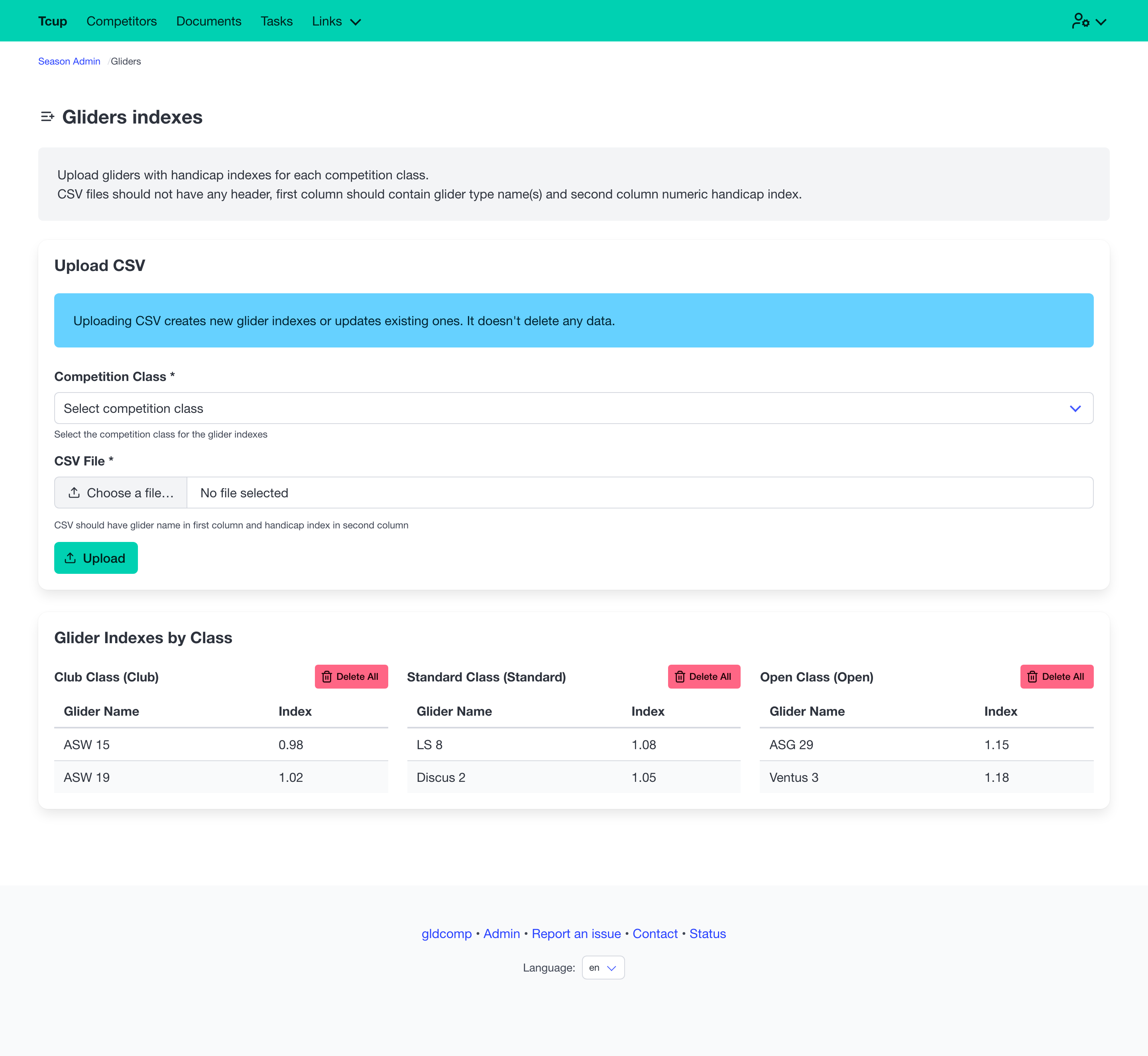
- Bulk import via CSV: no header row, glider name in the first column and the numeric index in the second.
- Indexes are listed per class; you can delete a single entry or clear all indexes for a class.
Clearing a class’s indexes means competitors in that class will need to re-select their glider, so GldComp confirms before doing it.
IGC files
The IGC Files tool shows every flight log pilots have uploaded.
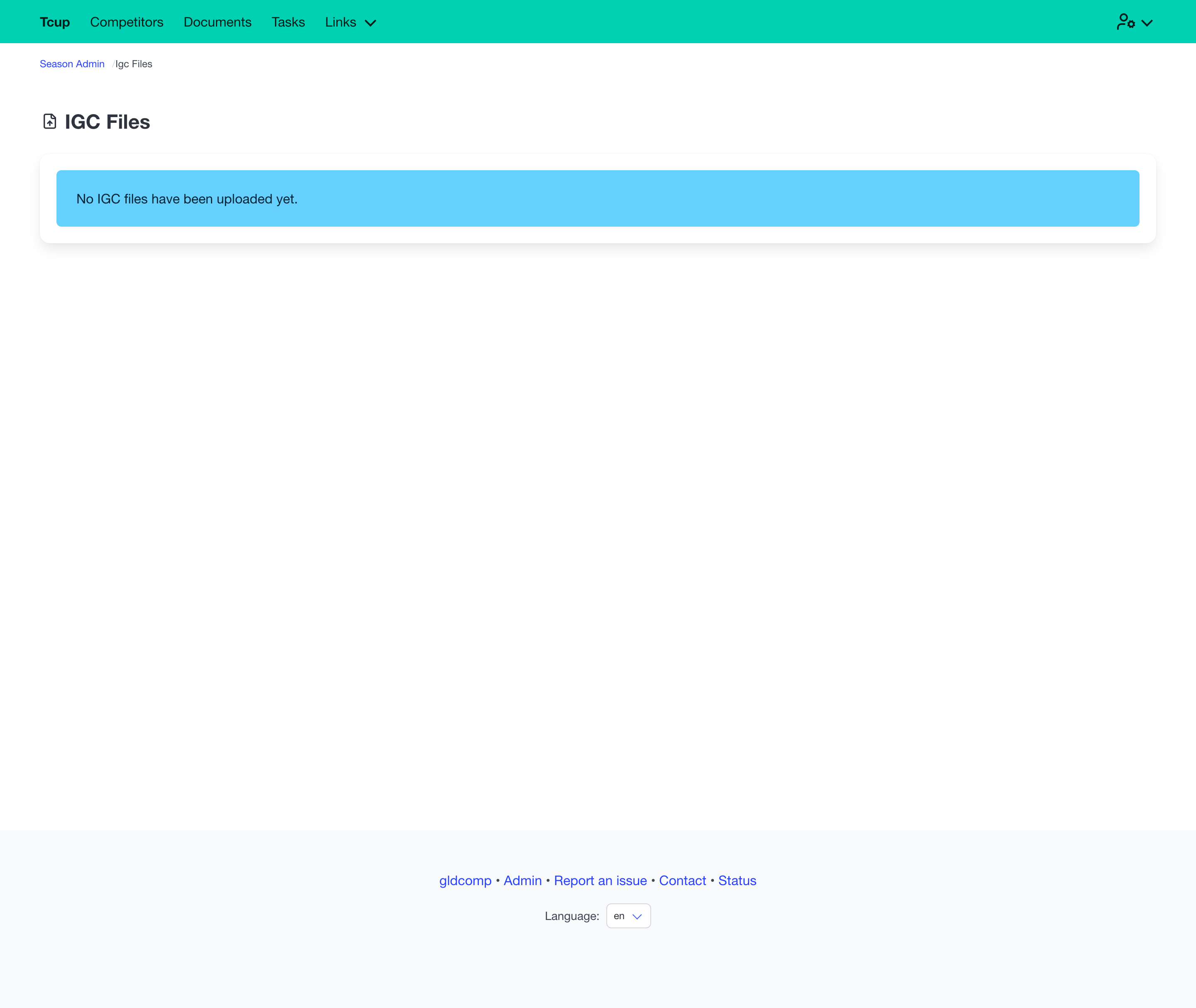
Files are matched to pilots using the recorder ID from their registration; unmatched files are flagged so you can follow up. You can search the list and delete any file that was uploaded by mistake.
Where IGC files go
When a pilot uploads a flight (via the browser or by email), it’s handled in two ways at once:
- Stored in GldComp — the file is saved to the application’s storage and appears in this overview, where you can review, match and manage it.
- Forwarded to Soaringspot — the same file is automatically uploaded to Soaringspot, so flights flow straight into the scoring pipeline without any manual re-upload.
For scoring to pick the flights up, set up your SeeYou Competition to download data from Soaringspot and point the competition settings at the correct folder for the flights. See Naviter’s guide How Auto Evaluate works for setting up the flight search folders. Once that’s configured, pilots’ uploads are scored automatically end-to-end.