Tasks & Results
View each day's task, download it to your flight computer, and jump to the official results.
The Tasks page is where pilots find every task that has been set, download it to their navigation device, and follow the scoring.
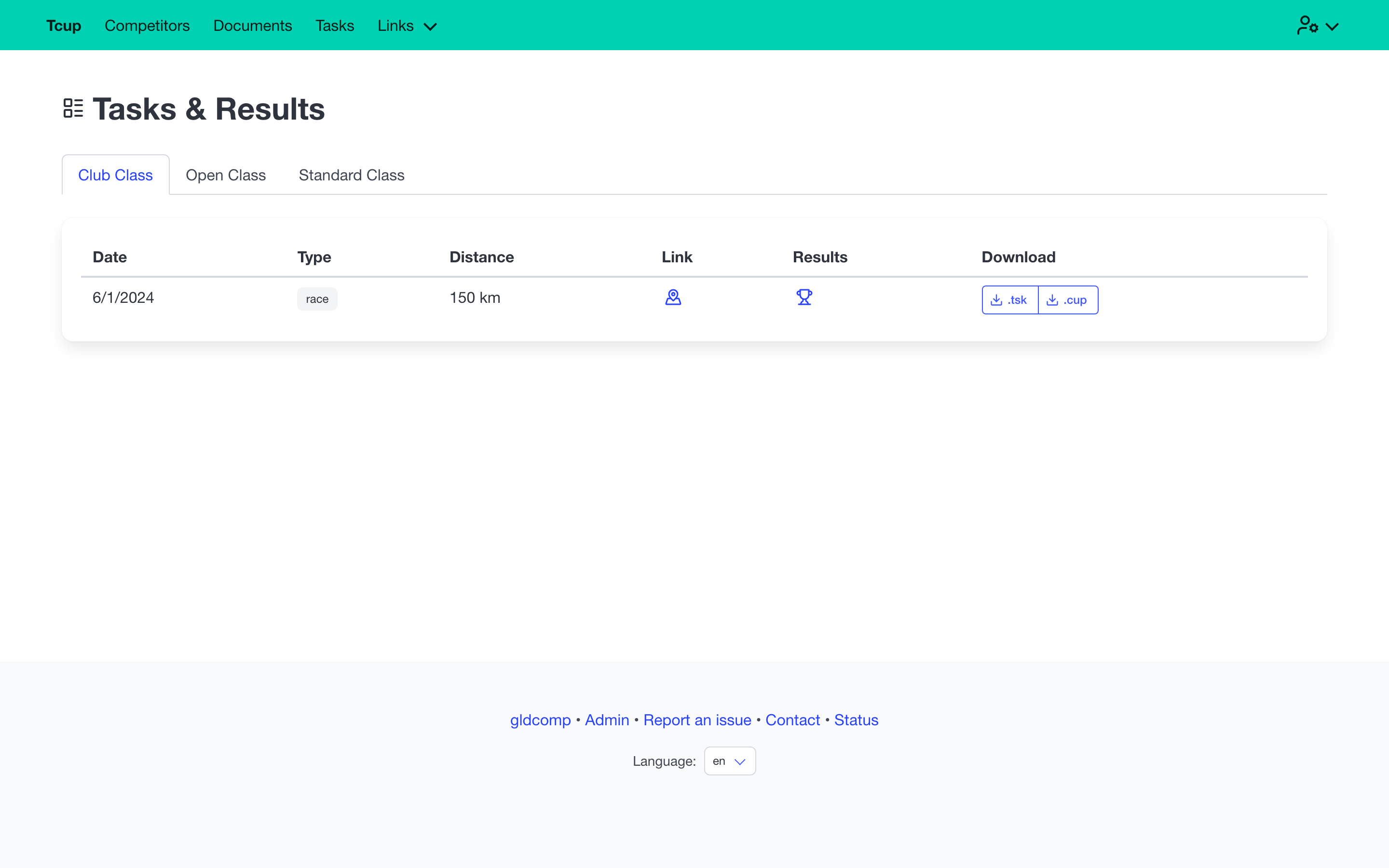
What you’ll find
Tasks are organized into a tab per class (Club, Standard, Open…). Each task row shows:
- Date — the competition day.
- Type — the task type (e.g. Racing, Assigned Area, Distance, Speed), shown as a colored tag.
- Distance — the task distance.
- Link — opens the task in an external tracking/map view when available.
- Results — a trophy icon linking straight to the official Soaringspot results for that task.
- Download — buttons to download the task in
.tsk(SeeYou task) or.cup(waypoint) format.
Downloading a task safely
The first time you download a task, GldComp shows a short reminder to verify the task before takeoff — check turnpoints, observation zones, and the start/finish lines on your device, and (for Assigned Area Tasks) make sure “Auto Next” is disabled. You can tick Don’t show this warning again once you’ve read it.
Tasks become available here as soon as the organizer syncs them from Soaringspot or sets them up. Daily and overall results are linked from both this page and the home page.